

Electronic Proposal Clearance Form Instructions
Prior to your first use of the application, please call the OSP Main Office at (406) 994-2381 to have your NetID added to security tables.
- ePCF switched to SAML/SSO/2FA authentication on October 1, 2025. To log in, you'll need to use your NetID@msu.montana.edu and password; then you'll need to confirm the 2FA prompt in Duo.
- The application uses the Banner University Recognized (OFFICIAL) E-mail Address. The email is set in MSU MyInfo / Personal Information / Update E-mail Address. For assistance please call the MSU Help Desk at Ext 1777.
- The application works with Chrome, Edge, Firefox, and Safari browsers on Windows, Mac OS, and Linux.
- Popup windows must be allowed for the application. A warning is displayed when popups are blocked and you need to change the setting. If you need assistance for your particular browser, please contact the MSU Help Desk at Ext 1777.
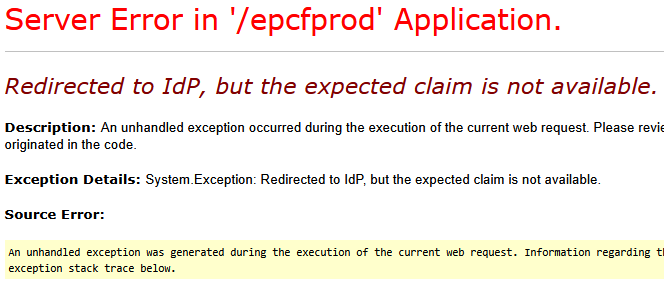
Claim Not Available?!?
ePCF switched to SAML authentication on Oct 1, 2025. (SSO, 2FA, Duo push etc.) This requires the app to redirect out and back a couple of times. To keep track of where it is in the process, it temporarily sets a cookie named "ePCF_Auth". This error occurs when you're redirected to authenticate, but the process is not completed. Deleting the "ePCF_Auth" cookie solves the problem; we'll just delete all cookies (from that domain) because it's easier.
Firefox
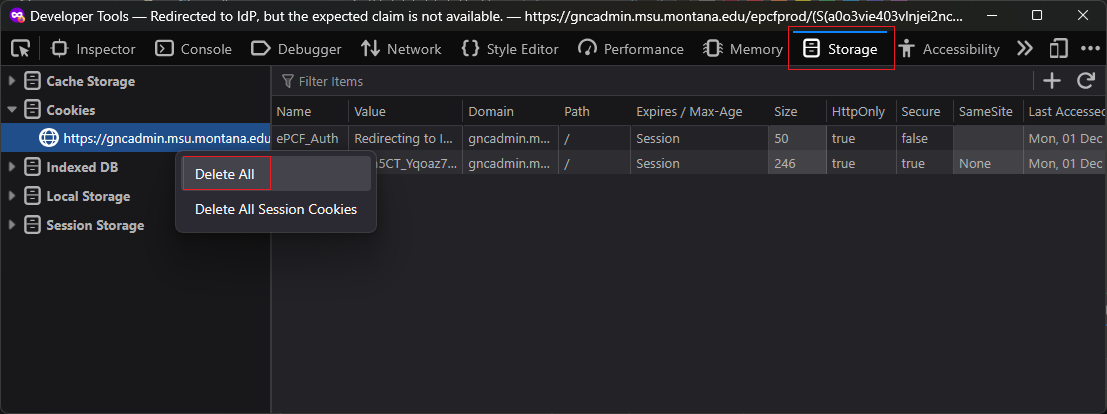
- Press F12 in the window with the error to bring up developer tools
- Click on the "Storage" tab near the top of the dev tools window
- On the left side under "Cookies," right-click on gncadmin.msu.montana.edu, and click on “Delete All”
- Close all browser windows and try ePCF again
Chrome/Edge
(Under the hood, Edge is Chrome. The two browsers have much in common.)
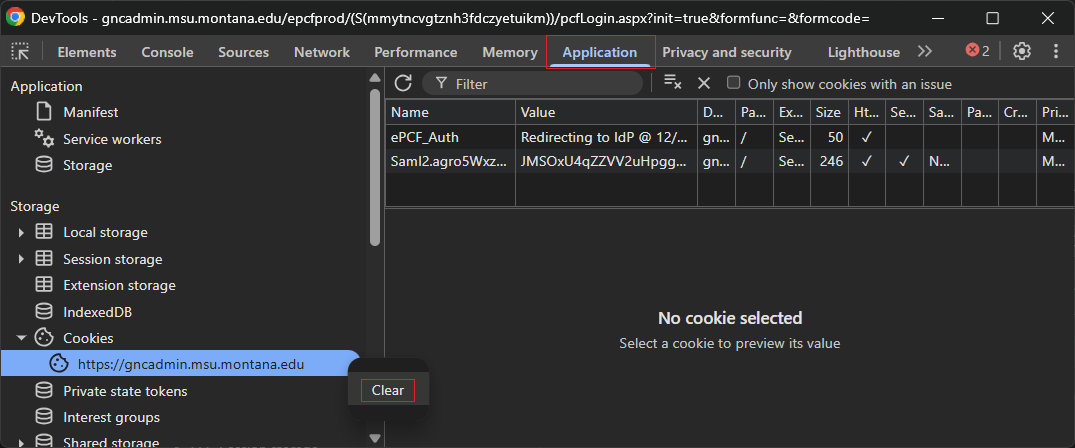
- Press F12 in the window with the error to bring up developer tools
- Click on the "Application" tab near the top of the dev tools window
- On the left side under "Cookies," right-click on gncadmin.msu.montana.edu, and click on “Clear”
- Close all browser windows and try ePCF again